


 About Urh Social
 Terms of Service
 Privacy Policy
 Contact
How to Convert Outlook OST Files into PST Format?
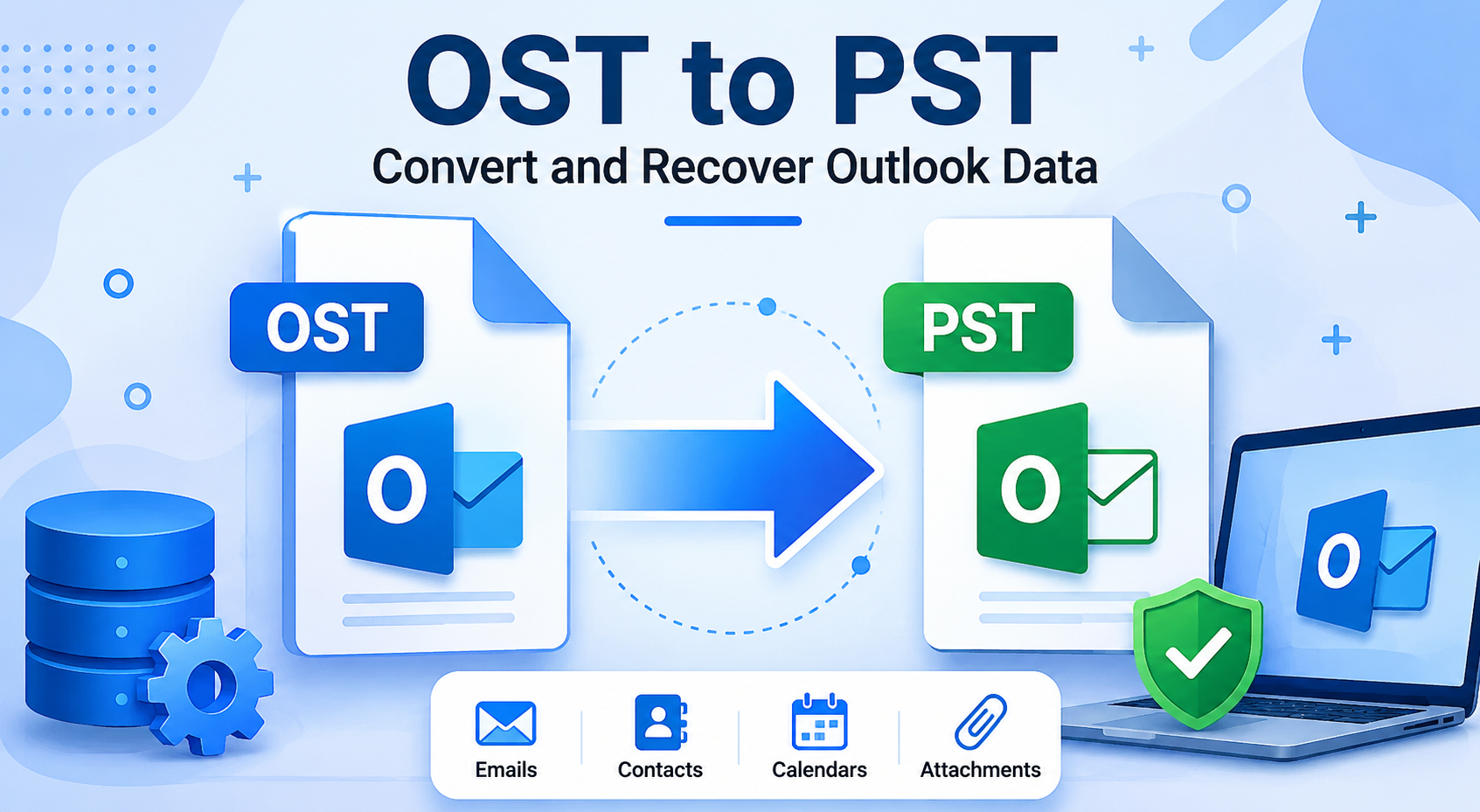
Microsoft Outlook is widely used for professional and personal email communication. It helps users manage emails, contacts, calendars, tasks, and other mailbox information in one place. Depending on the account configuration, Outlook stores mailbox information in different file formats, including OST and PST. Understanding these formats is important when transferring, backing up, or accessing Outlook data.
Sometimes, users need to access mailbox information outside the original Outlook profile. In such situations, converting an OST file into PST format can be a practical option.
Understanding Outlook OST and PST Files
Before starting the conversion process, it is useful to understand the differences between OST and PST files.
What is an OST File?
An OST (Offline Storage Table) file is a local copy of mailbox data associated with an Outlook account. It allows users to work with synchronized mailbox information even when an internet connection is unavailable. Once the connection is restored, Outlook can synchronize supported changes with the mail server.
OST files are generally associated with the Outlook profile and account configuration through which they were created. This association can make accessing the file through another profile difficult.
What is a PST File?
A PST (Personal Storage Table) file is a data file used by Outlook to store emails and other mailbox items locally. Unlike an OST file, a PST file can be opened or imported into a compatible Outlook profile, making it useful for archiving, transferring, and backing up mailbox information.
Why Convert OST to PST?
There are several situations in which users may need to convert Outlook OST data into PST format.
1. Accessing Mailbox Data After Profile Changes
When an Outlook profile is removed, reconfigured, or no longer connected to the original account, accessing its associated OST file may become difficult.
2. Creating a Local Backup
A PST file provides a convenient way to keep a local copy of mailbox information. Users can store the exported file separately for future reference.
3. Transferring Outlook Data
PST files can be imported into compatible Outlook profiles. This makes them useful when moving mailbox information between systems or accounts.
4. Working with an Orphaned OST File
An orphaned OST file may remain on a computer after the original mailbox or account becomes unavailable. A suitable conversion process can help extract accessible mailbox information from such a file.
5. Managing Important Emails
Some users need to preserve selected emails, attachments, contacts, or calendar information for recordkeeping. Exporting mailbox data can make this information easier to manage.
Manual Method to Export Outlook Data into PST
If the original mailbox is accessible and Outlook can connect to it, users can export mailbox information through Outlook's built-in Import/Export feature.
Follow these general steps:
-
Open Microsoft Outlook on your computer.
-
Select File from the menu.
-
Choose Open & Export.
-
Click Import/Export.
-
Select Export to a file and continue.
-
Choose Outlook Data File (.pst).
-
Select the mailbox folder you want to export.
-
Enable the option to include subfolders if required.
-
Choose a destination for the PST file.
-
Complete the export process.
This method is useful when the original Outlook account and mailbox are working correctly. However, it may not solve the problem of an orphaned OST file that cannot be accessed through its original Outlook profile.
A Dedicated Solution for OST File Conversion
When the manual export option is unavailable, a dedicated OST to PST Converter can provide another way to extract mailbox information.
MailsDaddy OST to PST Converter is designed to help users convert OST files into PST format without depending entirely on the original Outlook profile. It provides a process for adding an OST file, scanning its contents, previewing mailbox folders, and exporting the required information.
The software can be useful when users need to work with inaccessible OST files or want more control over the conversion process.
Key Features to Consider
Mailbox Preview: Preview available mailbox folders and their contents before exporting data.
Selective Conversion: Choose specific folders or mailbox items instead of exporting everything.
Batch Processing: Process multiple OST files when handling several mailbox data sources.
Folder Structure Preservation: Maintain the available mailbox folder hierarchy during the export process.
Email Filtering: Apply available filters, such as sender, recipient, subject, or date range, to narrow down the emails selected for export.
Multiple Export Options: Depending on the supported version, users can export mailbox data into formats such as PST, EML, MSG, HTML, MHTML, RTF, PDF, and MBOX.
Steps to Convert an OST File Using MailsDaddy
The general conversion workflow is straightforward:
-
Download and install MailsDaddy OST to PST Converter on your Windows computer.
-
Launch the application.
-
Add the OST file that needs to be processed.
-
Start the scanning process.
-
Preview the available mailbox folders and email items.
-
Select the folders or data you want to export.
-
Choose PST as the output format.
-
Browse and select a destination folder.
-
Apply available filters if required.
-
Start the conversion and wait for the process to finish.
-
Open the resulting PST file in a compatible Outlook profile to verify the exported information.
Always keep an unchanged copy of the original OST file before beginning any conversion process.
Important Points About OST File Recovery
Users searching for Free OST File Recovery should understand that recovery and conversion are not always the same process. A conversion tool may extract accessible mailbox information, but the results depend on the condition and structure of the source file.
If an OST file is severely damaged, encrypted, or incomplete, successful recovery cannot be guaranteed. Avoid modifying the original file, and create a backup before attempting any repair or conversion operation.
Conclusion
OST and PST files serve different purposes in Microsoft Outlook. While OST files support offline access and synchronization, PST files are useful for local storage, backup, and transferring mailbox information.
The built-in Outlook export feature works when the original mailbox is accessible. For orphaned or inaccessible OST files, MailsDaddy OST to PST Converter offers an alternative workflow for scanning, previewing, and exporting available mailbox data. Choosing the appropriate method depends on the file condition and the user's requirements.

 English
 Arabic
 French
 Spanish
 Portuguese
 Deutsch
 Turkish
 Dutch
 Italiano
 Russian
 Portuguese (Brazil)
 Greek