


 About Urh Social
 Terms of Service
 Политика конфиденциальности
 Contact
The Hidden Cost of Mouse-Dependent Work: Rethinking Everyday Computer Habits
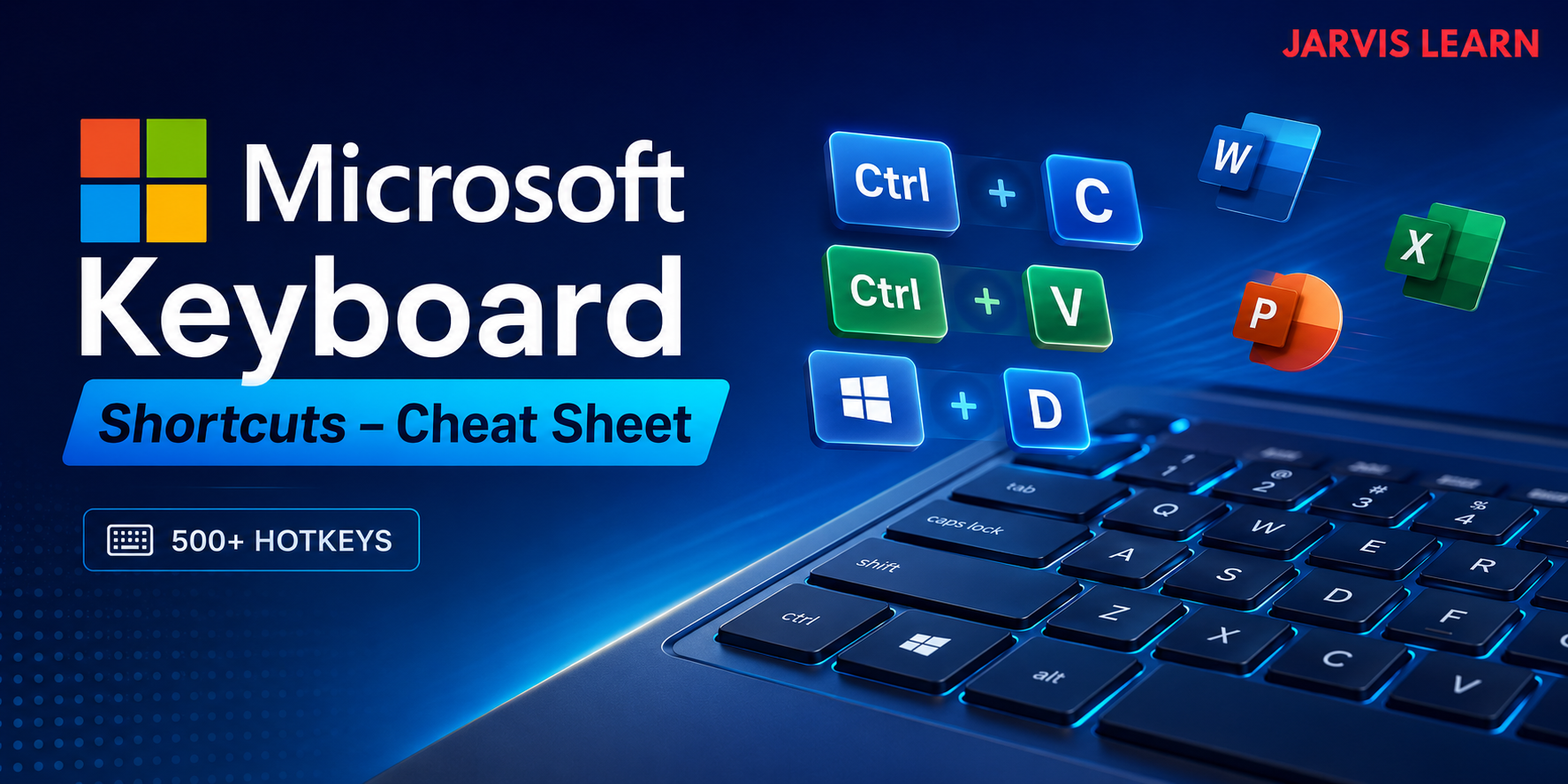
For many professionals, using a mouse to navigate documents, switch applications, and format spreadsheets feels natural. The problem is that familiar habits are not always the most efficient ones. Repeatedly moving between the keyboard and mouse can add small interruptions to routine tasks, particularly when employees spend hours working across multiple applications.
These interruptions may seem insignificant individually, but repetitive workflows can make them more noticeable over an entire workday. Employees who frequently edit documents, analyze data, or manage email may benefit from reducing unnecessary navigation and learning more direct ways to perform common actions.
Keyboard shortcuts offer a practical starting point. Rather than changing an entire working style overnight, professionals can identify repetitive actions and replace them with simpler commands.
1. Understanding the Cost of Repetitive Navigation
The issue with mouse-dependent work is not that using a mouse is inherently inefficient. Pointing devices remain useful for visual design, precise selection, and tasks that require spatial interaction. The challenge arises when the same navigation patterns are repeated even when a direct keyboard command is available.
Consider a professional preparing a weekly report. They may switch between a spreadsheet and a document, copy information, locate a paragraph, adjust formatting, and save the final file. Each action requires a decision about where to move, which control to select, and what to do next.
Keyboard commands can simplify many of these steps. Common examples include:
-
Ctrl + CandCtrl + Vfor copying and pasting on Windows. -
Ctrl + Zto undo an action. -
Alt + Tabto switch between open applications. -
Win + Eto open File Explorer. -
Ctrl + Fto find text in many applications.
These commands do not eliminate every interruption, but they can reduce unnecessary pointer movement and make familiar tasks more consistent.
2. Why Keyboard Shortcuts Matter Beyond Speed
Productivity is not simply a measure of how quickly someone completes an individual action. It also involves accuracy, concentration, and the effort required to maintain a reliable workflow.
When employees repeatedly interrupt a task to navigate menus, they may need to reorient themselves before continuing. The effect varies by task and individual, so it would be misleading to assume that every shortcut produces a measurable productivity gain.
A more useful approach is to identify actions that occur frequently and evaluate whether shortcuts make them easier.
Practical applications across office software
Microsoft Word: Use shortcuts for text formatting, document navigation, and editing. For example, Ctrl + B toggles bold formatting, while Ctrl + H opens Find and Replace in many Windows versions of Word.
Microsoft Excel: Use Ctrl + Arrow to navigate to the edge of a data region and Ctrl + Shift + L to toggle filters in supported versions. These commands can be especially useful when working with large tables.
Microsoft Outlook: Learn commands for composing, searching, and managing messages, while checking the shortcut behavior for your particular Outlook version.
Microsoft Teams: Use supported shortcuts to navigate chats, search for information, and manage meetings without repeatedly opening menus.
Professionals looking to expand their command library can refer to this resource on Microsoft Keyboard Shortcuts for additional commands across common applications.
3. The Ergonomic Considerations of Mouse and Keyboard Use
Efficiency is only one part of a sustainable computer workflow. Repeated movements, awkward wrist positions, and poorly arranged workstations can contribute to discomfort during prolonged computer use.
Keyboard shortcuts may reduce some unnecessary mouse movements, but they are not a substitute for ergonomic adjustments. Heavy keyboard use can also create repetitive demands, particularly when shortcuts require awkward combinations or sustained finger positions.
A balanced setup should include:
-
Keeping the keyboard and mouse within comfortable reach.
-
Maintaining a neutral wrist position where possible.
-
Adjusting chair, desk, and monitor height to support a comfortable posture.
-
Taking regular breaks from sustained computer work.
-
Using accessibility features or alternative input methods when they better suit the task.
The objective is not to eliminate mouse use. It is to create a working environment where both input methods serve a clear purpose.
4. Build Better Habits Without Memorizing Hundreds of Commands
Attempting to learn hundreds of shortcuts at once can make the process unnecessarily difficult. A smaller, task-focused approach is easier to maintain.
Start with five to ten commands that match your daily responsibilities. Someone who writes reports might prioritize editing and formatting commands, while an analyst might focus on spreadsheet navigation and data selection.
A simple learning process can help:
-
Identify three repetitive tasks performed every day.
-
Find a relevant shortcut for each task.
-
Practice the commands during normal work rather than in isolation.
-
Keep a short reference list near your workstation.
-
Review which commands genuinely improve your workflow after one or two weeks.
As these commands become familiar, add more based on actual needs. Remember that shortcut combinations can differ between Windows and macOS, and some commands vary across application versions.
Rethink the Habit, Not the Entire Workflow
More efficient computer use rarely requires a complete overhaul. It begins with recognizing repetitive actions and making deliberate improvements where they matter most.
Keyboard shortcuts can reduce unnecessary navigation, support consistent work habits, and help professionals move through routine tasks with less friction. Their value comes from regular use, not from memorizing an impressive number of commands.
Choose a few shortcuts that solve real problems in your workday, practice them consistently, and expand your knowledge as your needs evolve. For more educational resources and practical learning material, visit Jarvis Learn.

 English
 Arabic
 French
 Spanish
 Portuguese
 Deutsch
 Turkish
 Dutch
Dutch
 Italiano
 Romaian
 Portuguese (Brazil)
 Greek
Greek