


 About Urh Social
 Terms of Service
 Privacy Policy
 Contact
How To Print Multiple Copies Of A Presentation Without Mixing Pages?
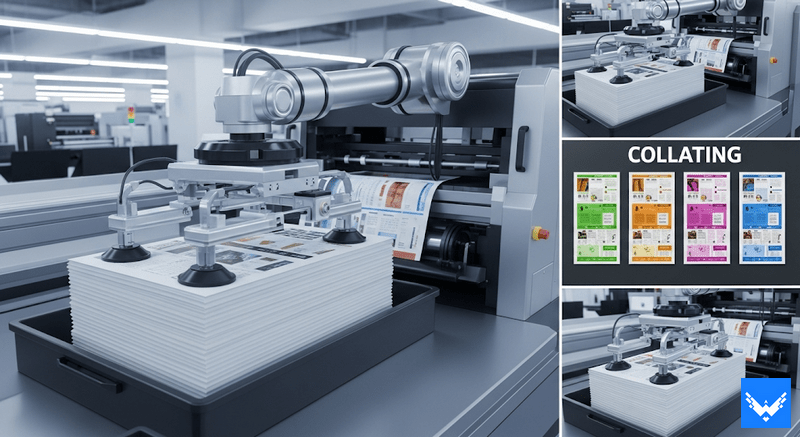
Printing multiple copies of a presentation means making more than one set of the same slides. It is often used in schools, offices, and training sessions. The teacher or manager prepares slides and sends print commands for many copies. The system then generates sets based on instructions. If page order and copy settings stay correct, output remains clean. If settings are wrong, pages can shift, which creates confusion and extra work during distribution.
Why do pages get mixed when printing presentations?
Pages get mixed when printer settings, software behavior or user actions do not align properly. Many users skip print setup steps and directly send commands. Software sometimes processes slides in the wrong sequence due to file structure or memory load. The printer may also group pages incorrectly when multiple copies are selected. This results in mixed output like random-order pages instead of a proper sequence. Careful setup before printing helps reduce these problems and keeps every printed set organized.
What is collating in printing & why is it important?
Collating means printing pages in a proper sequence for each copy. For example if you are printing 3 copies of a 10-slide presentation, collating makes sure each set comes out like 1 to 10, then again 1 to 10 and so on. Without collating, the printer may print all page 1s first then all page 2s which becomes very confusing. This is where the collate printing example becomes helpful. Imagine a teacher printing notes for 30 students. If pages are not collated students will get mixed sheets and not complete notes. This creates disorder and wastes time.
How can you set collation options in software like PowerPoint or PDF tools?
Most presentation and PDF tools include collate options inside the print menu. After selecting the print command users can see the copy section and checkbox for collate. Activating collate option ensures each printed set follows the proper page order from start to end. PowerPoint places this option inside the print settings panel while PDF tools show the same function near copy selection. The preview screen also helps confirm layout before printing. Skipping these steps often causes mixed page output and extra correction work later.
What are the most common mistakes people make during printing?
Many printing issues happen due to small user mistakes during setup. People often ignore the preview screen and directly print files without checking the layout. Another common mistake involves forgetting to activate the collate option while printing multiple copies. Some users also select the wrong file version or ignore page size settings. These mistakes lead to wasted paper repeated printing and confusion during sorting. Careful review before pressing the print button reduces errors and keeps workflow smooth in both office and academic environments.
How does file format affect printing order?
File format plays an important role in printing accuracy and page sequence. PDF format keeps the layout stable because the structure remains fixed during the printing process. PowerPoint format sometimes changes alignment depending on system or printer compatibility. If the file export process remains incomplete slide order may shift or content may reflow. Many users convert presentations into PDF before printing to reduce risks.
What is the difference between collated and uncollated printing?
Collated printing produces full sets in proper order for each copy while uncollated printing groups the same pages together across all copies. For example, collated output follows patterns like 1 2 3 1 2 3 for multiple sets. Uncollated output prints 1 1 1 2 2 2 3 3 3 format. Offices usually prefer collated mode because distribution becomes easier without manual sorting. Uncollated mode becomes useful when manual arrangement is planned later. Understanding both options helps users choose the correct printing style based on task requirements and workflow needs.
What happens in the real office when printing goes wrong?
Printing mistakes in the office create confusion and delay during work hours. A team may send large print jobs without checking settings which leads to mixed page order. Employees then spend time sorting pages manually on tables before meetings or submissions. This process slows workflow and increases frustration during deadlines. A small setting mistake causes large disruption in the document flow. Proper checking before printing prevents such problems and keeps office tasks organized without extra correction work or wasted effort.
How can you test print before final printing?
Test printing involves printing a few sample pages before full document output. This step helps check page order layout and alignment before the final batch starts. Users can print the first two or three pages to confirm settings. If any issue appears, correction happens early without wasting a full paper stack. Test print also helps identify formatting issues that screen preview may miss. Many professionals follow this step to reduce errors and improve accuracy during bulk printing tasks.
How can businesses improve printing workflow with packaging and branding support?
Businesses often deal with large printing tasks for reports, presentations and marketing materials. To stay organized they also need proper packaging for documents and printed materials. This is where brands like UPacked can help, custom boxes by UPacked. They support businesses with custom packaging solutions that keep printed materials safe and well organized. Good packaging ensures that printed presentations do not get damaged or mixed during transport. It also improves brand presentation in meetings or client deliveries
What are the final best practices for error free printing?
Good printing results depend on careful steps before the final command. Users should always check the print preview and confirm page order before starting. Collate option must stay enabled when multiple copies are required. PDF format works better for a stable layout during printing. Small test print helps identify issues early and avoids waste. Consistent checking habits reduce mistakes and improve output quality. Following these steps ensures a smooth printing process and keeps all presentation copies organized and ready for use without extra correction work.

 English
 Arabic
 French
 Spanish
 Portuguese
 Deutsch
 Turkish
 Dutch
Dutch
 Russian
 Romaian
 Portuguese (Brazil)
 Greek
Greek